Exporting Inventory
Export inventory to CSV for reporting, backups, or re-import after edits. Use this guide to choose what to export and understand the file structure.
In this guide:
Export Inventory Data
Inventory can be exported to CSV at any time for reporting or for feeding external systems.
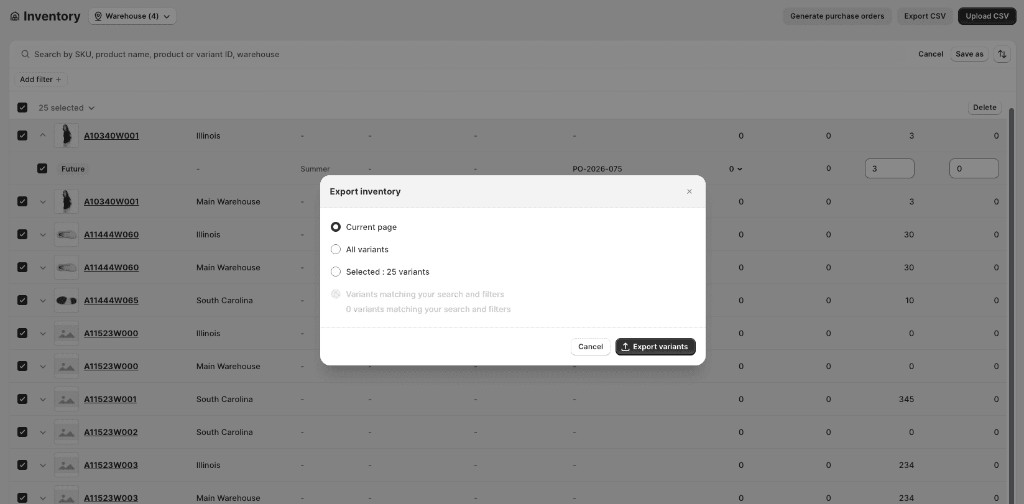
Export scope
| Option | What it exports |
|---|---|
| Current page | Records visible on the current page |
| All | All inventory records |
| Selected | Rows you checked in the grid |
| Filtered | All records matching the current filters |
Steps
- Apply any filters or select records (optional)
- Click Export CSV on the Inventory page
- Choose the export scope
- Click Export to download the file
CSV Format
Exports use the same column structure as CSV uploads, so an exported file can be edited and re-imported directly.
Exported Fields
Exports include every field described in Understanding Inventory Fields — Style Number, UPC, Warehouse, Season, Type, PO Number, Quantity, Committed, Incoming, On-hand, and the individual unavailable buckets.
Best Practices
Export scope
| Scope | What it exports |
|---|---|
| Current page | Records visible on the current page |
| Selected | Records you've selected with checkboxes |
| Filtered | All records matching the current filters |
| All | All inventory records |